How to Render Waveforms in DaVinci Resolve: A Step-by-Step Guide
If you’re working in DaVinci Resolve and have noticed that your waveforms aren’t rendering properly, you’re not alone. There are several reasons why waveform generation may be slow or not working at all in DaVinci Resolve, but not to worry. In this step-by-step guide, we’ll cover everything you need to know to get your waveforms rendering correctly in DaVinci Resolve.
Understanding Waveforms in DaVinci Resolve
Before we dive into how to properly render your waveforms, it’s important to understand what waveforms are and their purpose in DaVinci Resolve.
What are Waveforms?
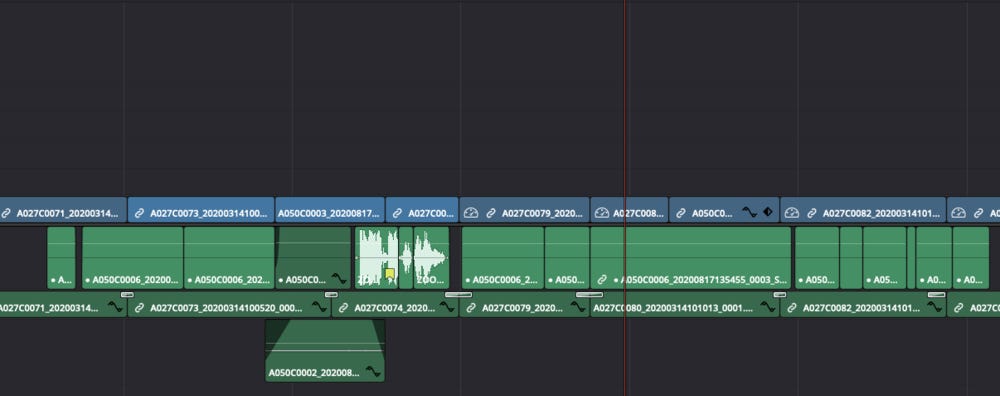
Waveforms are visual representations of audio files that show the amplitude of the sound wave over time. They’re represented as squiggly lines that move up and down as the volume of the sound changes. In DaVinci Resolve, waveforms are used to help you edit and sync your audio.
Why Are Waveforms Important in DaVinci Resolve?
Waveforms are important in DaVinci Resolve because they give you a visual representation of your audio files. This helps you to easily see where there are gaps in your audio, where peaks and valleys occur, and to align your audio with your video footage.
Reasons Why Waveforms May Not Be Rendering
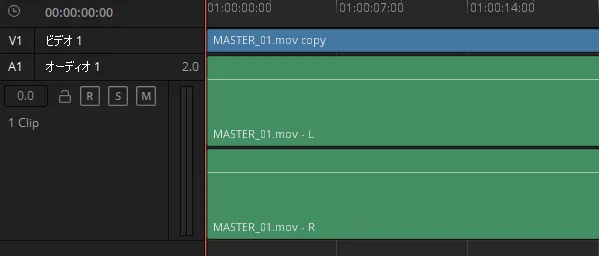
Now that we know what waveforms are and why they’re important, let’s take a look at some of the common reasons why waveforms in DaVinci Resolve may not be rendering.
Slow and Inefficient Waveform Generation
In some instances, the waveform generation process may be slow and inefficient, causing waveforms to take longer to generate or not generate at all.
Workaround: Generating Proxies
A workaround for this issue is to generate proxies of the media at the beginning of the project. Generating low-resolution ProRes Proxy files before a timeline is created forces waveform generation to occur when you start proxy generation, and gives you a clear progress bar of its progress. Admittedly, this workaround is time-consuming, but it can be effective if you’re experiencing extremely slow waveform generation.
Storage Interface for CacheClip Folder
The storage interface for the drive(s) containing the CacheClip folder is also important and may be causing issues with rendering waveforms.
Solution: Moving CacheClip Folder
One solution to this issue is to move the CacheClip folder to a faster storage location. This may help to make rendering waveforms more reliable and efficient.
Cache Not Generating Properly
Another common reason why waveforms may not be rendering properly is due to the cache not generating properly or being damaged.
Solution: Delete Cache and Reopen Project
A simple solution to this issue is to quit DaVinci Resolve, delete the cache, and then reopen the project. This will regenerate the cache and fix any issues with waveform generation.
How to Render Waveforms in DaVinci Resolve
Now that we’ve covered some of the common issues with rendering waveforms in DaVinci Resolve, let’s dive into how to properly render your waveforms.
Step 1: Check Audio Settings
First, check your audio settings and make sure that the audio track is enabled. If it’s disabled, enable it and the waveform should appear.
Step 2: Convert Audio Track
If the audio track is using a file type that DaVinci Resolve does not support, convert the audio track to a WAV or other format that is supported. You can also use a DAW like Reaper to convert unsupported audio files to a supported format.
Step 3: Clear Cache
If the waveform still isn’t rendering, head to your Project Settings and then Master Settings. Scroll down to Working Folders and look at where the cache is located. Clear the cache by deleting what is there, then reload DaVinci.
Step 4: Other Troubleshooting Methods
If none of the above steps work, try deactivating controlled folder access, replacing problematic audio files, or updating your software to a newer version.
Conclusion
Rendering waveforms in DaVinci Resolve doesn’t have to be a frustrating experience. By following the steps outlined in this guide, you’ll be able to properly render your waveforms and improve your audio editing workflow in no time.
FAQs
1. Why Are My Waveforms in DaVinci Resolve Slow to Render?
This could be due to slow and inefficient waveform generation, a problematic storage interface for the CacheClip folder, or a damaged or nonexistent cache. Try generating proxies or moving the CacheClip folder to a faster location, clearing your cache, or troubleshooting other methods to fix these issues.
2. My Waveforms in DaVinci Resolve Look Different than My Audio. How Can I Adjust Them?
You can adjust the display settings for your waveforms in DaVinci Resolve using the waveform brightness and contrast sliders in the Display Options panel.
3. Can I Adjust the Volume of My Audio in DaVinci Resolve?
Yes, you can adjust the volume of your audio in DaVinci Resolve using the volume slider in the Fairlight tab. You can also adjust the volume of individual clips by keyframing the volume envelope.
4. How Do I Sync My Audio and Video Footage in DaVinci Resolve?
You can sync your audio and video footage in DaVinci Resolve by using the built-in sync tool or by manually syncing them using the in and out points for each clip.
5. Is DaVinci Resolve Free to Use?
Yes, there is a free version of DaVinci Resolve available to download and use. However, certain advanced features and capabilities are only available in the paid studio version.