How to Uninstall EasyTune – Step-by-Step Guide
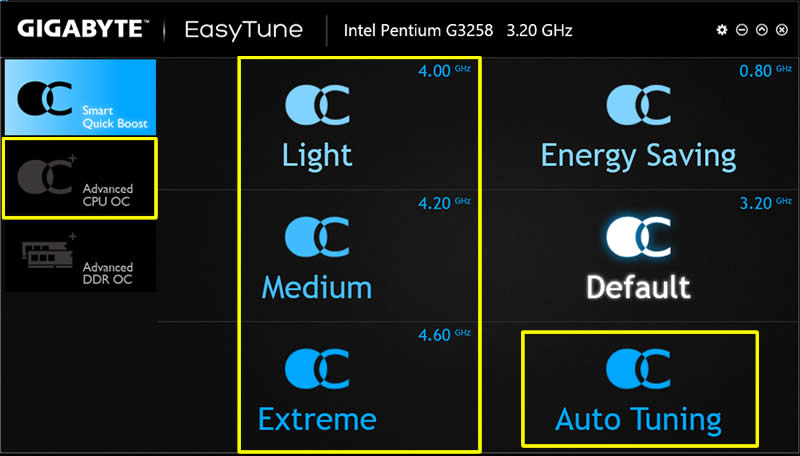
If you are experiencing compatibility issues, unwanted changes, or performance issues with your Gigabyte hardware, knowing how to uninstall EasyTune may be crucial. EasyTune is a system performance monitoring and overclocking utility designed for Gigabyte boards. While it can be a useful tool, it may not always be necessary or may even cause problems. Uninstalling EasyTune is a straightforward process, but it is essential to do it correctly. Here’s a step-by-step guide on how to uninstall EasyTune from your computer.
Step 1: Access the Control Panel
Click on the “Start” menu on the bottom left corner of your desktop and select “Control Panel” from the list of applications. Alternatively, press the “Windows” key and type “Control Panel” to access it.
Step 2: Find “Programs and Features”
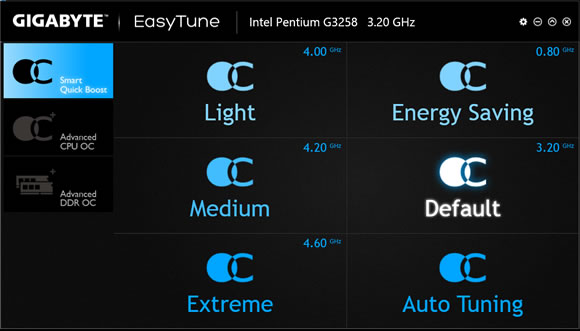
Step 3: Locate EasyTune in the list of installed programs
Step 4: Uninstall EasyTune
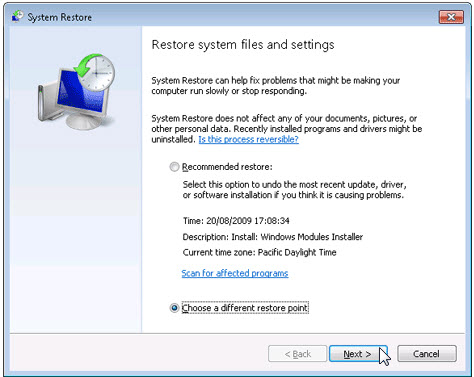
Step 5: Follow the Uninstallation Wizard
Step 6: Restart your computer
After the uninstallation process is complete, you may be prompted to restart your computer. Restart your computer to complete the process.
Step 7: Verify that EasyTune is Uninstalled
Check if EasyTune is uninstalled correctly by going back to the “Programs and Features” list in the Control Panel. If EasyTune is still listed, repeat the uninstallation process.
Reasons for Uninstalling EasyTune
Compatibility Issues
If you are experiencing compatibility issues with EasyTune, uninstalling it may help to resolve them. Some hardware configurations may not work with EasyTune, and it could cause instability or crashes on your system.
Revert Changes Made by EasyTune
If you made changes to your system using EasyTune, and you want to undo those changes, uninstalling the program will revert those changes, allowing you to return your system to its previous state.
Performance Issues
EasyTune may cause performance issues, especially if it’s running in the background or interfering with other system processes. If you’re experiencing performance issues, uninstalling EasyTune may help resolve them.
How to Safely Uninstall EasyTune
Backup Your System
Before uninstalling any program, it’s crucial to make a backup of your system just in case anything goes wrong. You can use the built-in backup and restore system tool in Windows or a third-party backup tool.
Remove EasyTune from Startup
It’s essential to remove EasyTune from startup. EasyTune may start automatically after restarting your computer. Here’s how to remove EasyTune from startup:
- Press the “Windows” key and type “Task Manager” to open the Task Manager.
- In the Task Manager, click on the “Startup” tab.
- Locate “EasyTune” and select it.
- Click “Disable” to prevent it from starting up.
Remove EasyTune folders from Program Files
Another crucial step in uninstalling EasyTune is to remove all EasyTune folders from Program Files. Here’s how to do it:
- Open File Explorer and go to the C:\Program Files\GIGABYTE\ folder.
- Locate the ET5 or EasyTune5 subfolders. Delete the folder(s) if found.
Remove EasyTune entries from Registry Editor
The Registry Editor is a powerful tool, and it’s crucial to be careful while using it. Here’s how to remove EasyTune entries from the Registry Editor:
- Press the “Windows” key and type “regedit” to open the Registry Editor.
- Click on “HKCU\Software\Gigabyte\”, and look for a subfolder called ET5.
- Delete the ET5 folder if found.
Conclusion
Uninstalling EasyTune isn’t complicated if you follow the correct procedures. Compatibility issues, unwanted changes, and performance issues may require you to uninstall EasyTune. To uninstall EasyTune, access the Control Panel, select Programs and Features, locate EasyTune, uninstall it, and follow the prompts. Make sure to check that EasyTune is uninstalled correctly.
FAQs
What is EasyTune?
EasyTune is a system performance monitoring and overclocking utility designed for Gigabyte boards. It allows users to change and monitor system performance parameters easily, such as overclocking, CPU and memory enhancement features, and smart fan control.
Will uninstalling EasyTune remove all of its components?
Uninstalling EasyTune through Programs and Features should remove all EasyTune components. However, some remnants may remain on your computer, such as residual files, folders, or registry entries. Please follow the additional steps outlined in this guide to ensure complete removal.
Can I use third-party uninstaller software to uninstall EasyTune?
Yes. There are several third-party uninstaller software programs available that can potentially help remove any remaining files or registry entries related to EasyTune. Examples include Revo Uninstaller, IObit Uninstaller, and Wise Program Uninstaller.</