Counter-Strike: Global Offensive (CSGO) is an immensely popular first-person shooter game with a massive fan following. One of the reasons behind its popularity lies in the fact that the game comes with an in-built gameplay review system, known as the Demo Viewer. However, CSGO replay controls can be confusing, and players often struggle with using the video replay controls, which were designed to help them navigate through the demo viewer. In this article, we will provide you with a comprehensive guide on how you can use the CSGO replay controls to record highlights, analyse individual performances, or re-watch old games.
Enabling Demo Viewer Using CSGO Command Console
In order to start reviewing replays, players need to enable the in-built demo viewer through the CSGO command console. Here is how you can enable it:
Step 1: Open the CSGO Console
Action
Command
Open Console
Press ~ key
Step 2: Enable Developer Console
Action
Command
Open Options Menu
Press ESC
Go to Game Settings
Select ‘Game’ tab on the left, then click on ‘Game Settings’
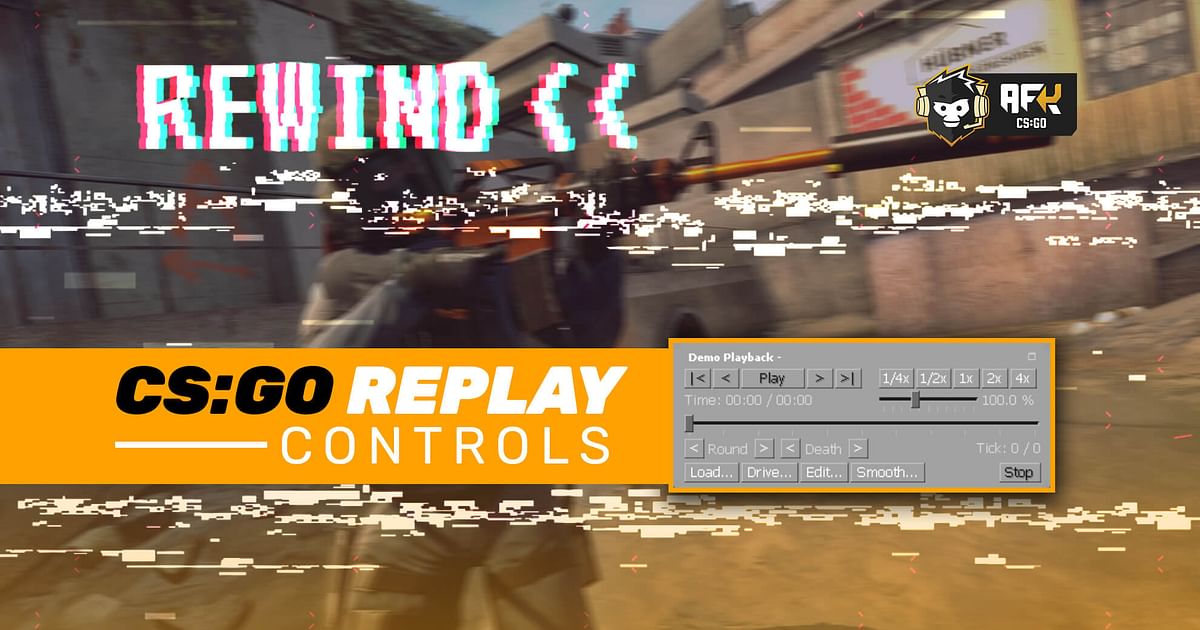
Once players have enabled the demo viewer, they can start using its replay controls to navigate through the demo. The replay controls allow players to fast-forward, rewind, change playback speed, and manipulate time and space within the demo viewer. Here is a detailed guide on how to use the CSGO replay controls:
Basic Gameplay Review
Play/Pause Controls
Action
Command
Play/Pause Demo
Select ‘Play’ or ‘Pause’ button from control menu
Frame-by-Frame Navigation Controls
Action
Command
Fast Forward 1 Tick
Select ‘>>’ button from control menu
Rewind 1 Tick
Select ‘<<‘ button from control menu
Advanced Gameplay Review
Playback Speed Controls
Action
Command
Change Playback Speed
Select playback speed from the playback speed controls
Set Custom Playback Speed
Drag the slider to set the desired playback speed
Round Navigation Controls
Action
Command
Jump to Next/Previous Round
Select ‘Next’ or ‘Previous’ button from round navigation controls
Death Navigation Controls
Action
Command
Jump to Next/Previous Death
Select ‘Next’ or ‘Previous’ button from death navigation controls
Loading and Playing Demos
Action
Command
Load Demo
Select ‘Load’ button from demo controls menu
Conclusion
CSGO replay controls may seem confusing at first, but with a little bit of practice, players can easily navigate through the demo viewer and review their gameplay. Whether you want to record highlights, analyze individual performances, re-watch old games, or analyze overall gameplay, the in-built gameplay review system of CSGO is a valuable tool for all players.
CSGO is a first-person shooter game developed by Valve Corporation.
2. What is the Demo Viewer in CSGO?
The Demo Viewer is an in-built gameplay review system in CSGO that allows players to review their gameplay, record highlights, analyze individual performances, re-watch old games, or analyze overall gameplay.
3. How can I enable Demo Viewer in CSGO?
You can enable Demo Viewer by enabling the CSGO command console and using the ‘demoui’ command to open the Demo Viewer.
4. How can I fast-forward or rewind demos in CSGO?
You can use the ‘>>’ button to fast-forward and the ‘<<‘ button to rewind demos in CSGO.
5. How can I change the playback speed in CSGO demos?
You can use the playback speed controls to change the playback speed or drag the slider to set a custom playback speed.