How to Fix Blinking and Flickering Camera on iPhone 13 and 14
Are you experiencing camera blinking and flickering issues on your iPhone 13 or 14 series? If yes, then you are not alone. Many iPhone users have reported similar problems while trying to capture photos or videos. This article will help you understand the reasons behind it and offer practical solutions to fix it.
Reasons for Blinking and Flickering Camera on iPhone
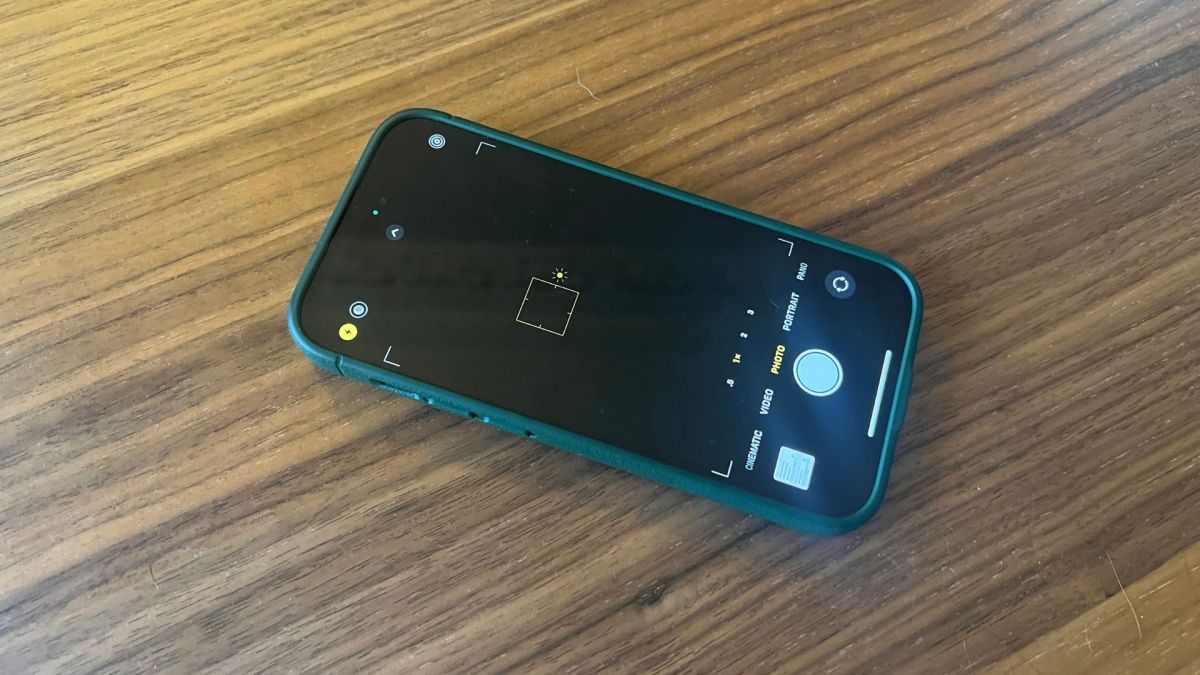
Macro Mode
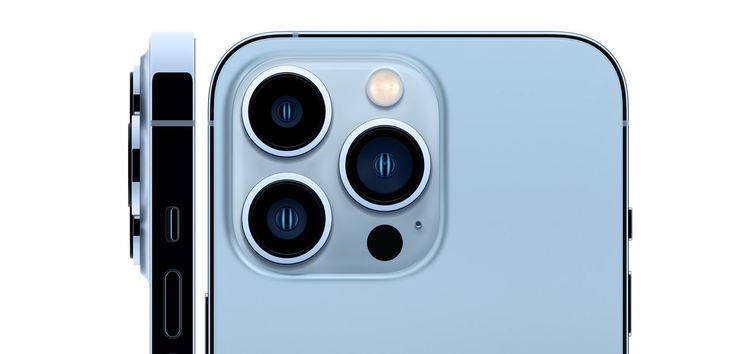
One of the primary reasons for camera blinking and flickering issues on the iPhone 13 and 14 series is the Macro Mode. The camera lens automatically switches between ultra-wide and wide lenses when trying to focus on an object too closely.
Exposure issues
Besides Macro Mode, exposure issues can also lead to your camera blinking while taking photos. If there is excessive lighting in the surroundings, it may cause the camera to struggle to find the ideal balance for auto-exposure, resulting in blinking and flickering.
Steps to Fix Blinking and Flickering Camera
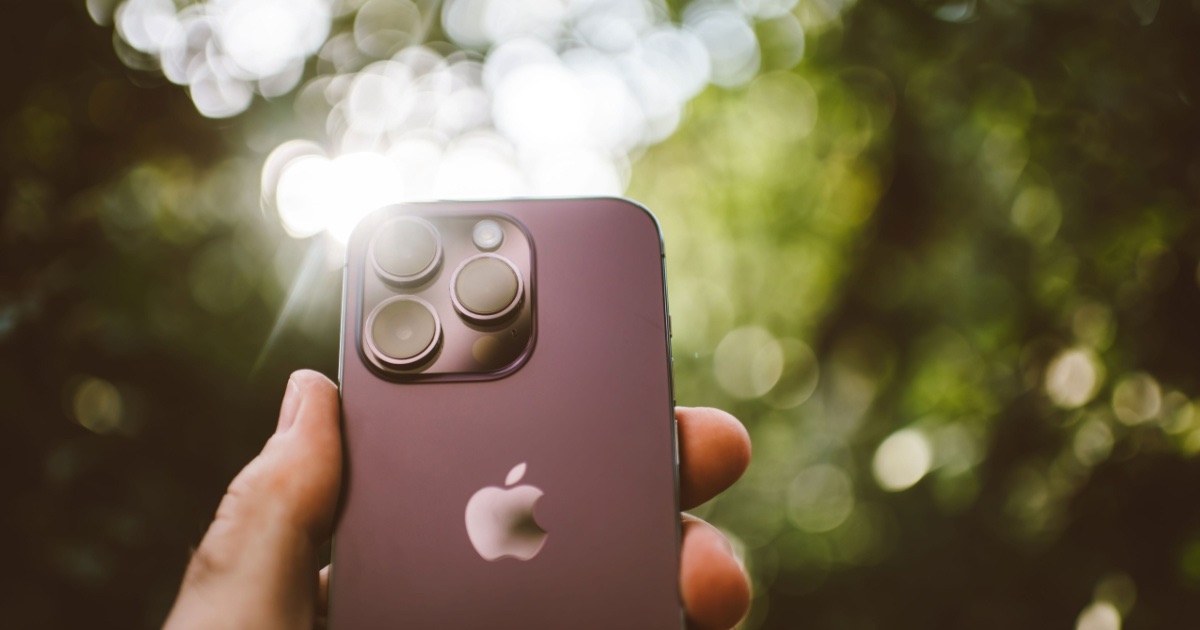
Disable Automatic Macro Mode
If your camera blinks due to the automatic Macro Mode, you can disable it by following these steps:
- Open the Settings app → tap Camera.
- Toggle off Macro Control.
Change Exposure Settings
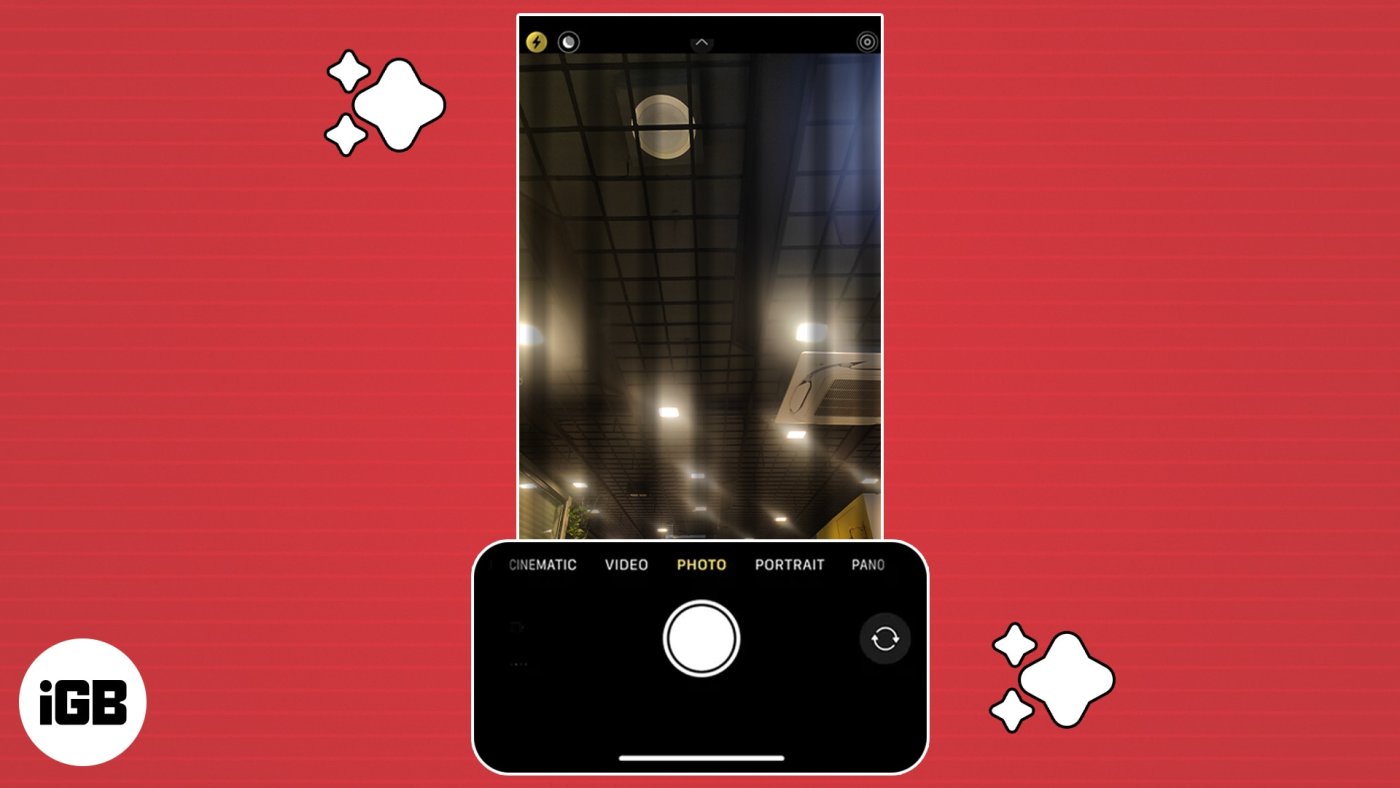
Changing the exposure settings on your iPhone camera can also fix temporary blinking and flickering in the camera app. Here are the steps:
- In the Camera app, tap the white arrow in the top middle of your screen.
- Tap the circle with a + and – to open exposure settings.
- Slide your finger to change exposure until the image seems clearer and the bright lights are subdued.
Restart your iPhone
Another simple yet effective fix is to restart your iPhone. It can reset the device and clear any bugs that may be causing camera blinking and flickering.
Further Troubleshooting
If the above steps do not fix the blinking and flickering camera problem, you may try the following:
Lock the Camera
If your camera is blinking or struggling to choose the right lens while recording a video, lock it to prevent camera switching.
- Go to Settings → Camera → Record Video.
- Turn on Lock Camera.
Contact Apple Support
If you continue to experience camera blinking and flickering issues, you may contact Apple Support for further assistance. They can provide a hardware repair or replacement if required.
Conclusion
Blinking and flickering cameras can be frustrating for iPhone users, but they are usually fixable. The above steps should help you overcome the issue. However, if the problem persists, reach out to Apple Support for hardware repair or replacement.
FAQs
1. Will disabling the Macro Mode affect my camera performance?
Disabling Macro Mode will not affect your camera’s performance. It is an optional feature that can help capture more detailed images.
2. Is camera blinking a software or hardware issue?
Typically, camera blinking and flickering issues are software-related and can be fixed by restarting the device or changing settings. However, if none of the software fixes work, it may be a hardware issue and requires a repair.
3. Do I need to back up my iPhone before contacting Apple Support?
It is always wise to back up your iPhone before contacting Apple Support, as they may need to reset or restore your device to fix the issue, which can erase your data.
4. Will turning off Macro Mode impact the quality of my photos?
No, turning off Macro Mode will not affect the quality of your photos. It is just a feature that can help you capture more detailed images of objects close to the lens.
5. Should I try the software fixes before contacting Apple Support?
Yes, you should always try the software fixes first before contacting Apple Support. They may be able to fix the issue without the need for hardware repair or replacement, which can save time and money.