“Twitch Problem 2000” is a well-known error that has been reported by a huge number of Twitch users. This vexing problem is also known as a network error since it is produced by an unsecured network connection or a faulty network connection.
According to users, while streaming on Twitch. tv, they receive the error message “there was a network issue.” Please try once more (error #2000).” and the video they are attempting to watch becomes briefly unavailable, resulting in a blank screen.
After examining the problem, we noticed that there are several probable causes for the error on Twitch. So, here are some of the probable factors that you should address if you find yourself in similar situations.
Bad Network Connection –
If you are not utilizing a secure network connection or are not connected through VPN, you will be unable to watch twitch videos and will see an error message on your screen. Connecting to secure network connections and disconnecting the VPN may help you resolve the issue.
Corrupted cache and cookies –
As it turns out, corrupted cache and cookies saved on the web browser slow down the network connection and make it impossible to connect when streaming twitch. tv on your browsers. Clearing the damaged cache and cookies and switching to incognito or private mode may help.
Interference from adblockers or browser extensions –
Sometimes adblockers and browser extensions start interfering with the website and causing the problem. Disabling your browser’s addons and ad blocker will allow you to watch Twitch without interruption.
Antivirus conflict –
Many customers have confirmed that their antivirus software is interfering with Twitch and preventing them from streaming. For them, disabling antivirus software or adding Twitch to the exemption list works.
As you get more familiar with each probable source of the mistake, begin following the remedies provided one by one.
Steps for Quick Troubleshooting
Before proceeding with the remedies provided below to resolve the problem, it is recommended that you attempt the following fast changes to resolve small bugs and glitches that may be obstructing or clashing with the Twitch content and preventing it from streaming:
Reload web browser —
To resolve this issue, simply refresh the web browser a few times. There may be difficulties with your browser, system, or internet connection that may be remedied simply by refreshing the browser by typing CTRL + R on your keyboard.
Restart your device –
Sometimes all you need to do is restart your phone or system since there may be an issue with the internal workings of the device you’re using.
Log out and re-enter Twitch –
Logging out and back into your streaming platform is a smart practice to avoid server-side issues and internal flaws. As a result, completing this step may resolve the issue.
God Of High School Season 2 CONFIRMED by Crunchyroll, Release Date, and Other Updates
Restore Corrupted Files
Download and run Restore from here to scan for and restore corrupted and missing data. After that, go to the solutions listed below.
Renew the Stream
This is one of the most basic and straightforward methods for correcting the issue. Internal flaws frequently cause issues while streaming. So, it is advised here to reload the broadcast several times and see whether you can stream the Twitch material without any errors. If you are still receiving an error, proceed to the next solution.
Examine your Internet Connection
When broadcasting material on Twitch, a weak, unstable, or terrible network connection causes Twitch error 2000. To resolve internet troubles, check your internet speed or contact your Internet service provider.
Check out the methods below to see if you can repair your internet connection so you can broadcast Twitch videos without issue.
Restart Modem —
If you use a network modem, you must restart it. First, disconnect the modem entirely, then reconnect it and turn it on. Now, try restreaming Twitch to check whether the fault has been resolved.
Change the Router Settings —
Make changes to the settings on your network router. To do so, navigate to your router’s settings and change the subnet mask to 255.255.255.0. After saving the changes, restart and reconnect your router. Be cautious and avoid tampering with your router’s other settings.
This will increase internet speed, resolve any glitches or faults that may be interfering with Twitch content, and prevent it from broadcasting.
Furthermore, if this does not work, try running the built-in network troubleshooter, which will comprehensively scan your machine and resolve any network issues:
The instructions to launch the troubleshooter on Windows 10 are as follows:
Press the Start button, then type Settings into the search box to open the Settings app.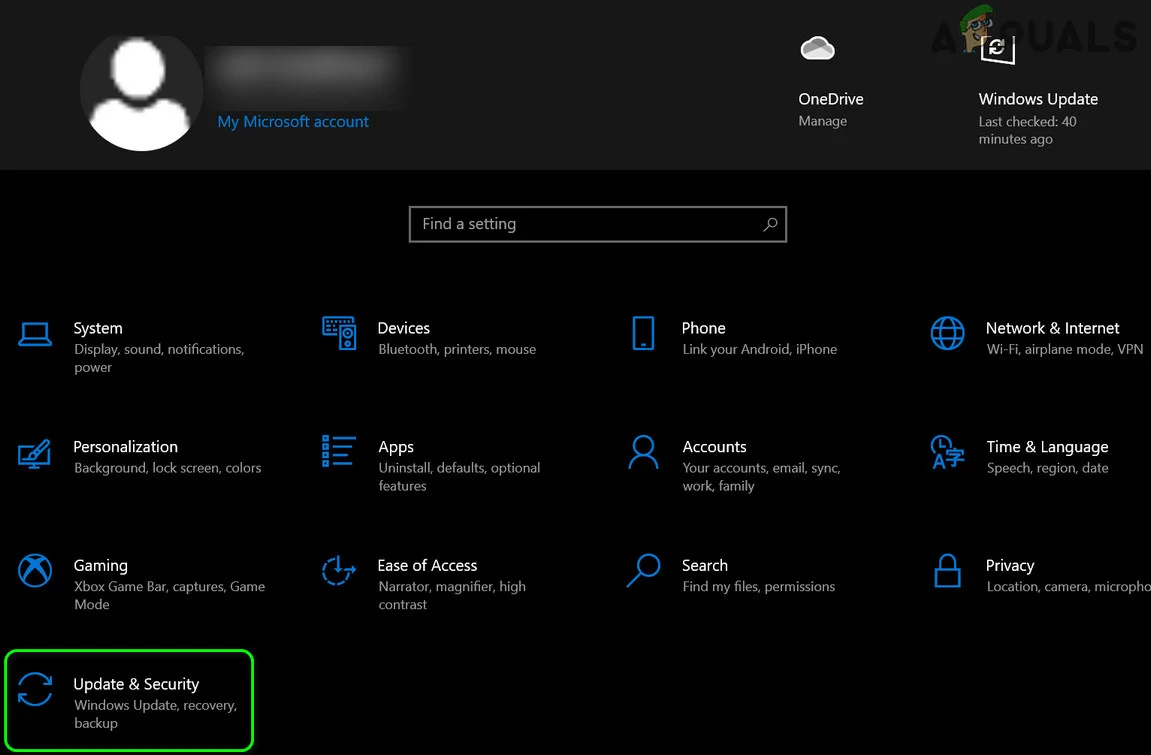
Now select the Update & Security option.
Locate the Troubleshoot option, choose Network Adapter, and then click the Run the troubleshooter button.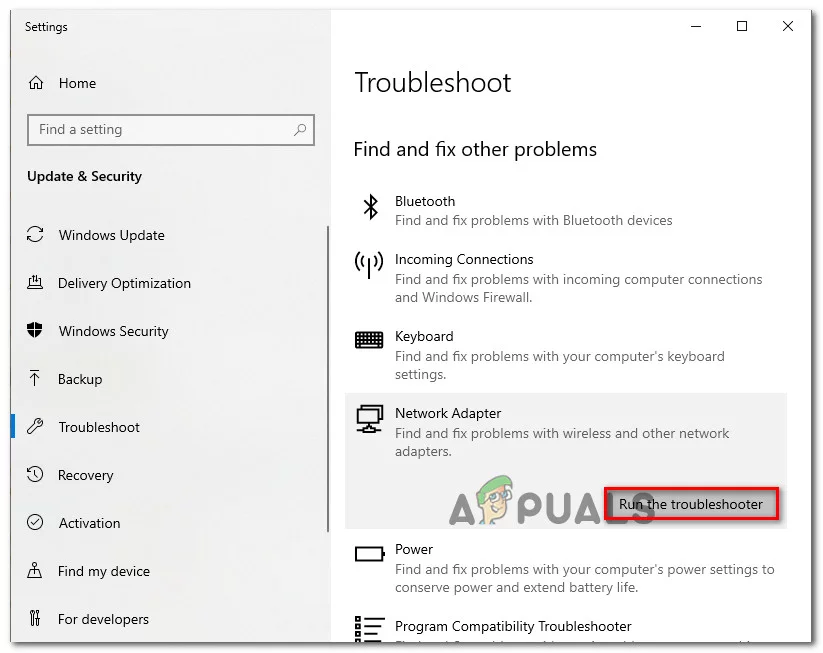
Wait for the scanning procedure to complete.
When the scanning is finished, try launching Twitch. tv to see whether the problem 2000 has been resolved. You may also attempt a new network connection, connect via a phone hotspot, or if you are connected by wifi, utilize an ethernet connection to gain an unbroken internet connection.
If you’re watching Twitch on your phone or tablet, turn it off and then back on your internet connection. Also, check to see whether the problem has been resolved.
Attempt a Different Browser
Sometimes the problem is caused by the browser. The extension, adblocker, or damaged cache, cookies saved on your browser clash with or interfere with the files and stop the applications that operate on it.
As a result, it is recommended that you test Twitch on a different browser, such as Mozilla Firefox or another. You may also open an incognito window or use a private browser.
Select Incognito mode from the main menu (in the Edge InPrivate window). Launch Twitch in this window and sign in. Check to see whether the issue remains. If this approach does not address your problem, move on to the next.
Disable ad-blockers and other browser extensions.
Many websites provide a counter-measure for ad blockers. Furthermore, if you have an Adblocker or other 3rd party installed on your browser, this may be interfering with the website you are attempting to view.
We often add browser extensions with a variety of functions. All of these extensions may or may not be related to the Twitch web page. The best way is to remove or disable the undesirable add-ons.
Follow the instructions to disable the extensions:
Launch your Chrome browser and click the three-dot menu icon, then More Tools, and finally Extensions from the menu.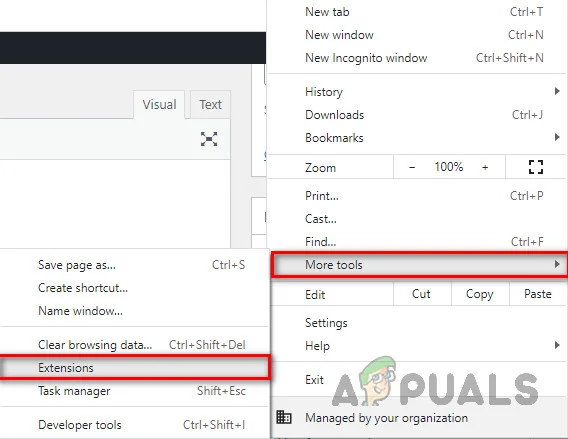
Locate the Adblock add-on and disable it by clicking the toggle.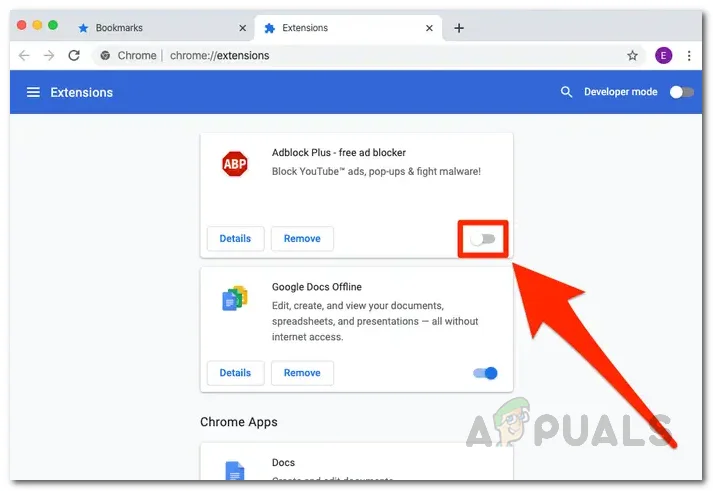
Then, refresh Twitch and try streaming again to see whether the problem has been resolved.
Furthermore, if you continue to notice being unable to load content with an error message, check and disable the other extensions installed one by one, and then try loading twitch content and refreshing the browser to locate the culprit one.
Clear your browser’s cache and cookies.
All browsers collect a large amount of data, which accumulates over time. Cookies from numerous websites are also included in this data. In general, any site you visit (including Twitch) collects statistics to improve the loading process. However, the stored data might get damaged and cause the connection to slow down.
PRO TIP: If the problem is with your machine or laptop/notebook, use Restore Repair to check the repositories and repair corrupt and missing data. This works in most circumstances if the problem is caused by system corruption. Restore may be downloaded by clicking here.
To resolve this issue, it is best to completely erase the cache and any data stored by your browser (passwords are an exception).
Turn off the HTML 5 Player.
HTML 5 is a form of video player that has some sort of functionality that allows it to play videos straight from any internet page without the need for any additional video player. However, because of its features, HTML 5 might occasionally create certain difficulties while utilizing Twitch content, resulting in Twitch error 2000.
To resolve this issue, HTML 5 players must be removed from the system. To disable it, follow these instructions –
Open the web page and start streaming whatever Twitch video you choose.
Navigate to the bottom right of Twitch’s streaming page, where you’ll see a settings option. Simply click on it.
Select the “Advanced Settings” option.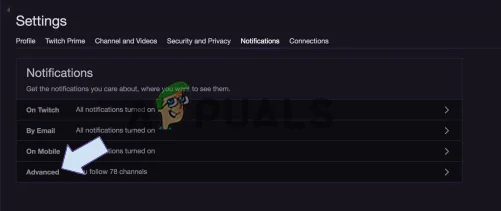
In such a case, deactivate HTML 5.
I hope that disabling the HTML 5 player solves your problem and allows you to begin watching Twitch videos. However, if the issue persists, proceed to the next possible remedy.
Deactivate Antivirus Software
The antivirus product installed on your PC may be interfering with the operation of the Twitch 2000 Network Error. In this situation, try temporarily deactivating the antivirus and seeing whether the issue remains.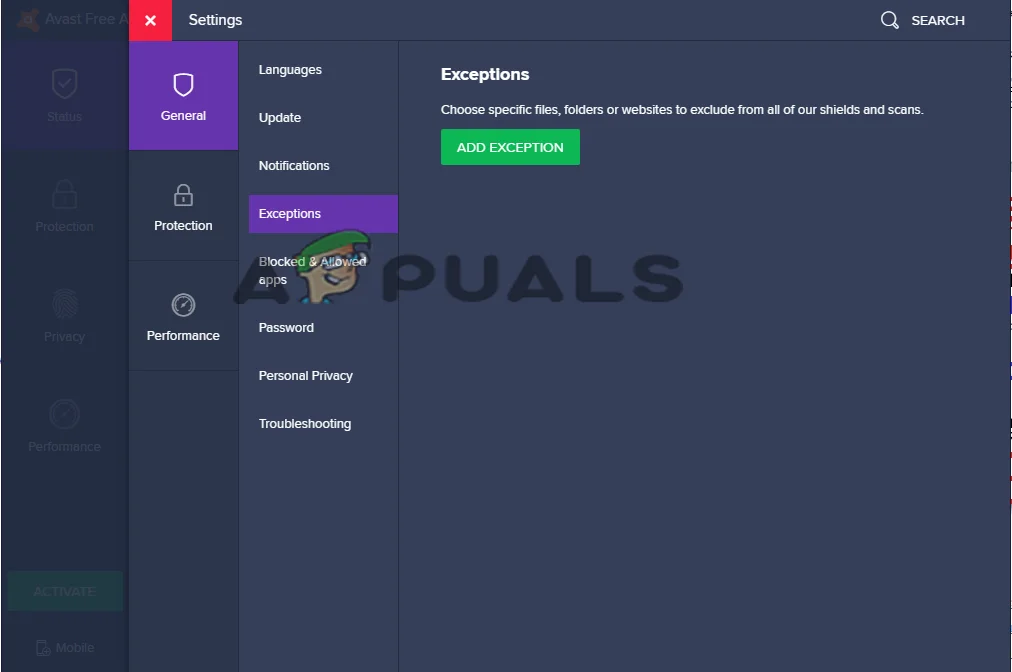
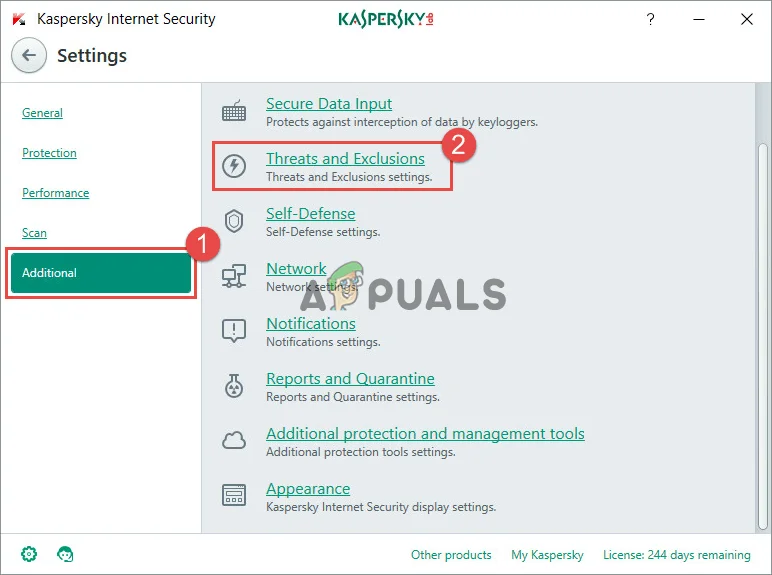
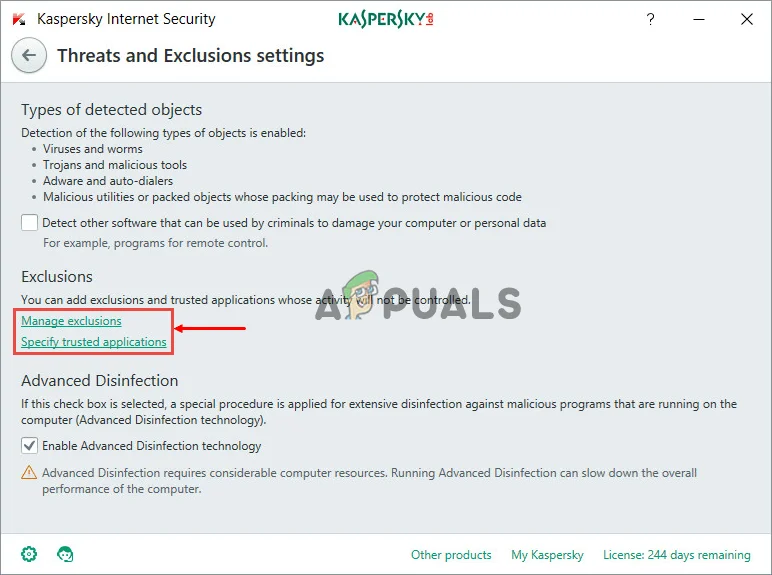 If you don’t get any issues, access your antivirus settings and add the Twitch program as an exception so that the antivirus and the Twitch application can both work at the same time.
How can I resolve Twitch Network Error 2000 in Firefox?
Mozilla Firefox users experiencing issues with Twitch streaming errors can follow the instructions listed below.
Allow the site to function normally again by disabling any extensions like “uBlock origin.”
To locate the cause, try removing each browser extension one at a time.
Take a look at other browsers, such as Chrome and Edge.
Set up a VPN service and install it on your computer if you’re still getting the issue, and then test Twitch TV using the VPN you installed.
So, that’s all there is to know about Twitch error 2000. To fix the issue and resume Twitch streaming, try each of the methods listed above one at a time. TV shows.
Always be Updated with us visit GeeksULTD for Real-time Update